 Flowpaja
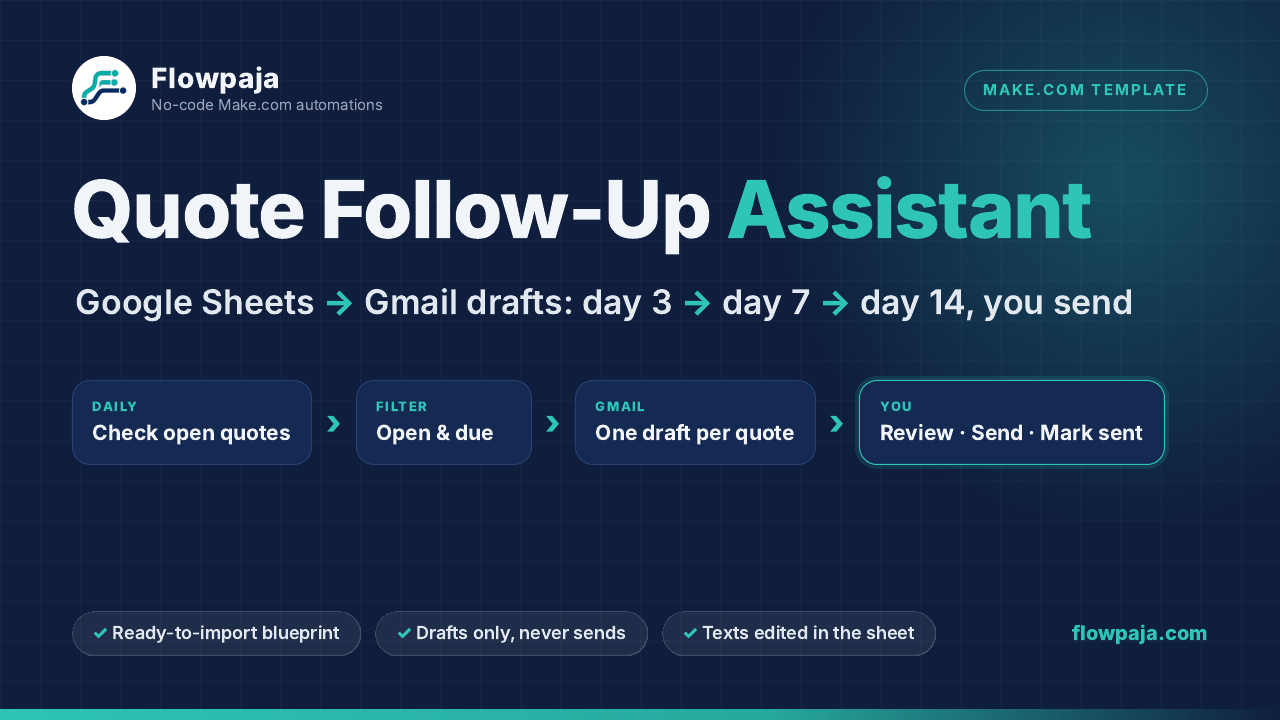
Most quotes that go quiet aren’t a “no”. The client got busy, and the follow-up never happened because you were busy too. If you keep your quotes or estimates in a Google Sheet, Make.com can check that sheet every morning and, when a follow-up is due, prepare a short, polite email in your Gmail Drafts. You check whether the client has already replied, adjust the wording if needed, and press Send yourself. This guide walks through the build step by step. If you’d rather not build it, there’s a ready-made template at the end.
Why drafts instead of automatic emails?
- Clients answer everywhere. A quote gets accepted on the phone, turned down on WhatsApp or discussed at the door. A Make scenario can’t see those conversations, so a fully automatic “just checking in” can land after the client already said yes.
- You keep the judgment. Some quotes deserve a call instead of an email; some clients need a different tone.
- Low risk while you test. A draft that’s wrong costs nothing. Nothing reaches a client until you press Send.
What you need
- A Make.com account. The Free plan works with a daily schedule. At the time of writing it includes 1,000 credits a month and 2 active scenarios (see make.com/pricing for current limits). No account yet? Create a free Make account (affiliate).
- A Google account with Google Sheets and Gmail. Personal Gmail and Google Workspace both work; on Workspace, your admin may need to allow Make as a third-party app.
- A quote list with one row per quote or estimate you’ve sent.
How the automation works
One scenario runs once a day. It reads your follow-up texts and your quotes, then does one of two things per quote:
Schedule (daily) → Google Sheets: Search Rows (Settings) → Google Sheets: Search Rows (Quotes) → Router
- Route 1, “you sent it”: you marked the last draft as sent, so it moves the quote to the next follow-up and sets the next date.
- Route 2, “draft due”: the next follow-up date has arrived, so it marks the row, creates one Gmail draft and saves the draft’s ID in the row.
Three follow-ups by default: day 3 (a quick check-in), day 7 (an offer to answer questions) and day 14 (a friendly note that you’ll pause follow-ups). After #3 the quote is Done. The formulas below are a starting point for a sheet with dates shown as YYYY-MM-DD; check each step with Run once and the output bubbles before relying on it.
Step 1: Set up the quote sheet
Create a Google Sheet with a tab called Quotes and these headers in row 1:
- A Quote ID (e.g. Q-101), B Client name, C Client email, D Project (e.g. kitchen tiling)
- E Quote sent date: a real date, formatted as
YYYY-MM-DD(Format → Number → Custom date and time) - F Status: a dropdown with Open, Replied, Won, Paused and Closed. Only Open gets drafts.
- G Next follow-up date (same date format) and H Next follow-up number (1, 2, 3 or Done): leave both empty for a new quote; the scenario fills them in.
- I Draft ID: written by the scenario. While it’s filled, the quote gets no new draft.
- J Sent?: you choose Sent here after you’ve sent the draft (a dropdown or a checkbox both work).
Add a second tab called Settings with your three follow-up texts in row 2 (A2, B2, C2), under headers in row 1. Keeping the texts in the sheet means you can edit the wording without opening Make. Use a placeholder such as [project] where the project name should go, for example: “Just checking that you received the quote for [project]. Is there anything you’d like me to clarify?”
Step 2: Read the texts and the quotes
Create a new scenario. Add Google Sheets → Search Rows on the Settings tab with a limit of 1 row: that’s module 1. Then add a second Search Rows on the Quotes tab (module 2), with “Table contains headers” set to Yes and a maximum number of returned rows such as 500. Each run costs 2 credits for these two reads, even when nothing is due.
In the references below, 2.`5` means “module 2, column F” (columns count from 0). In the editor you click fields from the mapping panel instead of typing them.
Step 3: Add a Router with two routes
Add a Router after module 2. The first route handles quotes you’ve marked as sent; the second creates drafts. Both see the same row data from the start of the run, and the draft route requires an empty Draft ID, so a quote you just marked as sent can’t get its next draft in the same run.
Step 4: Route 1, “you sent it”
Filter, conditions joined by AND:
- Sent? is set:
|sent|yes|true|x|, Text operators: Contains,|{{lower(trim(toString(2.`9`)))}}|. The pipes make “Sent”, a ticked checkbox (TRUE) or “x” all count, and nothing else. - A follow-up is in progress:
|1|2|3|, Contains,|{{trim(toString(ifempty(2.`7`; 1)))}}|.
Then Google Sheets → Update a Row on the same row (map the row number from module 2):
- H (next number):
{{switch(trim(toString(ifempty(2.`7`; 1))); "1"; 2; "2"; 3; "Done")}} - G (next date): the quote date plus 7 days after #1, plus 14 after #2, and empty after #3:
{{if(trim(toString(ifempty(2.`7`; 1))) = "3"; emptystring; formatDate(addDays(parseDate(2.`4`; "YYYY-MM-DD"); switch(trim(toString(ifempty(2.`7`; 1))); "1"; 7; "2"; 14; 0)); "YYYY-MM-DD"))}} - I (Draft ID) and J (Sent?):
{{emptystring}}to clear them.
Counting from the quote date keeps the rhythm at day 3, 7 and 14. The catch: if you mark a follow-up as sent late (say #1 on day 9), the day-7 date is already in the past, so #2 is drafted on the next run. Our template adds a minimum gap for that case (the next one waits at least the gap minus one day); in a DIY build, you can simply type a later date into G after that run.
Step 5: Route 2, “draft due”
Filter, conditions joined by AND:
- Status is Open:
{{lower(trim(2.`5`))}}, Text operators: Equal to,open. - Quote ID, project and email are filled: A (
2.`0`) and D (2.`3`) Basic operators: Exists; C (2.`2`) Text operators: Contains@. - No draft waiting and not marked sent: I (
2.`8`) Basic operators: Does not exist; and|sent|yes|true|x|, Text operators: Does not contain,|{{lower(trim(toString(2.`9`)))}}|. An unticked checkbox reads as FALSE, so a plain “Does not exist” on J would block every draft. - A follow-up is left:
|1|2|3|, Contains,|{{trim(toString(ifempty(2.`7`; 1)))}}|(Done rows fail this). - The follow-up is due: left
Date operators: Earlier than or equal to, right{{parseDate(ifempty(2.`6`; formatDate(addDays(parseDate(2.`4`; "YYYY-MM-DD"); 3); "YYYY-MM-DD")); "YYYY-MM-DD")}}
A new quote has no date in G yet, so the first follow-up is due 3 days after the quote date. “Today” uses your Make organization’s time zone.{{parseDate(formatDate(now; "YYYY-MM-DD"); "YYYY-MM-DD")}}
Then three modules in a row:
- Update a Row: mark it first. Write
creatinginto I (Draft ID). If the run stops before the draft ID is saved, the row still has something in I, so the next run won’t make a second draft. You’ll see “creating” in the sheet, check Gmail Drafts, and clear the cell. - Gmail → Create a draft. To:
{{trim(2.`2`)}}. Subject:Quote {{2.`0`}} — {{2.`3`}}. Content:Hi {{ifempty(trim(2.`1`); "there")}},followed by the right text for this follow-up, with the project filled in:
then your sign-off. There is no send step anywhere in the scenario.{{replace(switch(trim(toString(ifempty(2.`7`; 1))); "2"; 1.`1`; "3"; 1.`2`; 1.`0`); "[project]"; trim(2.`3`))}} - Update a Row: save the draft. Map the Draft ID from the Gmail module’s output into I.
Right-click the Gmail module → Add error handler → Skip (Make’s newer name for “Ignore”). If Gmail rejects one draft, for example because of a broken address, the other quotes are still processed, and that row stays at “creating” for you to check. Nothing retries on its own.
Permission gotcha: creating drafts needs more Gmail permission than sending. When we tested with a Gmail connection that had been created for sending, Make returned [403] Request had insufficient authentication scopes. Create a new connection from the Create a draft module itself, and Make asks for the right permission.
Step 6: Test, then schedule it once a day
Add three or four fictional quotes that use @example.com addresses (a domain reserved for examples), with quote dates a few days in the past, and click Run once. Check Gmail Drafts: you should see one draft per due quote. Don’t send them. Click Run once again: no new drafts should appear, because Draft ID is filled. Delete the test drafts and rows.
Then click Every 15 minutes in the scenario toolbar (the default schedule), choose Daily (or Weekdays (Mon-Fri)) and set a time such as 08:00. The time uses your Make organization’s time zone. Save, then switch the scenario on.
When the follow-ups land. If you send each draft and mark it Sent the same day, with a daily schedule, the follow-ups land on day 3, 7 and 14 after the quote. With the Weekdays schedule or a missed run, a date can move 1–2 days later, never earlier: a draft only appears once its date has been reached.
Credits. Each run costs 2 credits (the two reads). Each draft costs 3 (mark, create, save) and each “Sent” you mark costs 1. With a daily schedule that’s about 60 credits a month plus about 4 per follow-up, so roughly 140 credits for 20 follow-ups. Don’t leave it on every 15 minutes: that’s 2,880 runs a month and about 5,760 credits for the reads alone.
Your daily routine
- Check for a reply first. Email, phone, messages. If the client has answered, set Status to Replied (or Won or Closed) and delete the draft.
- Review and send. Open Gmail Drafts, adjust the wording if needed and send. Drafts are new emails, not replies inside the original conversation; if you prefer one thread, paste the text into your reply instead.
- Mark it Sent. Choose Sent in column J. The next run moves the quote on.
- Start small. On the first live run, every overdue Open quote gets a draft. Keep that first run to about 20 due quotes and set the rest to Paused, then reopen a batch each day.
What usually goes wrong
- Dates arrive as text in another format. The “due” filter never passes. Click the bubble on the Quotes Search Rows after a run to see exactly what Make received, and give columns E and G one consistent format.
- Duplicated rows. Two rows for the same quote mean two drafts. Keep one row per quote.
- Gmail re-authorization. Personal Gmail connections in Make need re-authorizing about every six months (see Make’s Gmail docs).
- It doesn’t know when a client replies. You update Status yourself. This build doesn’t read your inbox, by design.